
Notion (Unofficial)
notion_unofficial reads and writes Notion through its private web API (notion.so/api/v3) using a browser session cookie (token_v2) — no OAuth, no integration token. Where the official notion connector only sees what's shared to a bot integration, this one sees everything the logged-in user can see.
Best-effort / undocumented
The private API is not a public contract: it can change without notice, the cookie expires when the browser session ends, and using it is a ToS grey area. Treat this connector as a convenience, not a guarantee. Prefer the official notion connector for anything durable.
| Source | plugins/connector/notion_unofficial/ |
| Key | notion_unofficial |
| Icon | 📓 |
| Tier | plugin — install with <app> plugin install notion_unofficial |
| Default tags | Connector, Productivity |
See Connector Plugins for the install flow.
Importing credentials from a cURL
The connector authenticates with your browser's token_v2 cookie. The easiest way to hand it over is to copy any live notion.so/api/v3 request as a cURL and let the Import widget parse it — one paste fills TokenV2, UserAgent, NotionClientVersion, and ActiveUserID for you.
Open Notion in your browser (
app.notion.com/notion.so) while logged in.Open DevTools (
F12orCtrl/Cmd+Shift+I) → Network tab.In the filter box type
v3so only private-API calls show. Click around Notion (open a page) so a request appears — e.g.getTeamsV2,syncRecordValues,loadPageChunk. Anynotion.so/api/v3request works.Right-click the request → Copy → Copy as cURL (bash).
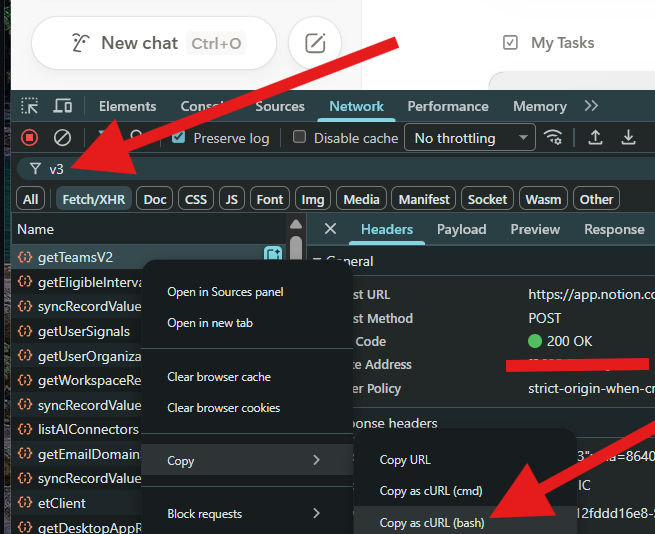
Which cURL format?
On Windows both Copy as cURL (bash) and Copy as cURL (cmd) are accepted — the widget parses both single-quote (bash) and double-quote (cmd) styles. Prefer bash when offered.
In the connector's config, paste the copied cURL into the Import textarea and click Extract. The fields below fill in automatically.
Confirm the Status widget shows Connected as your user + workspace.
The cookie expires
token_v2 is a session cookie: it dies when you log out, change your password, or the session rotates. When requests start returning 401 not authenticated, repeat the steps above with a fresh cURL. There is no refresh — the private API has no token-refresh flow.
You can also fill TokenV2 by hand: DevTools → Application → Cookies → https://www.notion.so → token_v2. Import-from-cURL is preferred because it also captures the matching User-Agent and client-version headers, which makes requests blend in with your real session.
Configs
| Field | Required | Notes |
|---|---|---|
Import (widget) | Paste a Copy-as-cURL of any notion.so/api/v3 request from browser DevTools, click Extract — it parses the curl and fills the fields below automatically. See Importing credentials from a cURL. The easiest way to set this connector up. | |
TokenV2 | ✅ (secret) | The token_v2 cookie from a logged-in notion.so session (DevTools → Application → Cookies → token_v2). Filled by Extract, or paste manually. Expires when the browser session ends. |
ActiveUserID | ✅ | Sent as x-notion-active-user-header. Filled by Extract; needed on sessions with multiple Notion accounts. |
UserAgent | ✅ | Advanced. Browser User-Agent sent with every request. Filled by Extract from a Copy-as-cURL — matches your real session so requests blend in. |
NotionClientVersion | ✅ | Advanced. Notion-Client-Version header the web app sends. Filled by Extract; defaults to a sensible value. |
Status (widget) | Live connection status card — probes the cookie and shows the logged-in user + workspace. |
All four auth/advanced fields are required — but the Import widget fills them all in one paste, so setup is still a single click, not extra manual typing.
Beyond these config fields, this connector also requires the per-instance AI description to be filled before it counts as set up — see AI description required.
AI description required
TokenV2 is a personal Notion session cookie — every call through this connector acts as that one human and can see/modify everything their account can, across their whole workspace. An instance with no record of who's allowed to use it is a liability, so this connector makes the per-instance AI description mandatory.
The AI description is the free-text guidance an admin writes for the LLM (shown in the connector's detail page). For notion_unofficial it doubles as the record of who may use this instance and what for. The agent sees it as a distinct operator_note field in wick_list / wick_search / wick_get — separate from the connector's built-in description — so it can tell an operator instruction from product copy and weight it accordingly.
- While the AI description is blank, the instance reports as
needs_setup— exactly like a missing required config field. It shows as unfinished in the manager UI and is treated as not-ready everywhere its status is consulted. - Fill the AI description (state who's allowed to use it, and optionally what for) and the instance flips to
ready. - The Import and Status widgets work regardless, so an operator can paste the token and confirm the connection first, then write the AI description to finish setup.
Setup — how to use it
End-to-end, from a fresh install to an agent making calls:
- Install & enable the plugin:
<app> plugin install notion_unofficial, then enable it (see Connector Plugins). - Hand over credentials. In the connector's config, paste a Copy-as-cURL into the Import widget and click Extract — see Importing credentials from a cURL. This fills
TokenV2and friends. - Confirm the connection. Check the Status widget reads Connected as your user + workspace. (Both widgets work before the instance is enabled.)
- Fill the AI description. On the connector's detail page, write who's allowed to use this instance (and optionally what for). This is required — until it's filled, the instance stays
needs_setup; once filled, it'sready. See AI description required. - Use it from an agent. The ops are now callable. A typical flow:
describe_database(get property names/types/options) →create_pageto add a row, orupdate_page_propertiesto change an existing row's cells;list_blocks→update_block/delete_block/append_contentto edit page body.
Operations
Read
| Op | Input | What it does |
|---|---|---|
fetch | page_id | Download a page and render its whole body as markdown (block tree recursed) — the MCP-style single-call read. Embedded databases (inline and linked views) are expanded into markdown tables that respect the view's filter, sort, and visible columns; dates, people, and relations resolve to readable values. Each table gets a footer noting the source database ID and view filter. |
query_database | page_id, limit | Return a database's rows as {id, title, cells}, applying the view's filter and sort. |
describe_database | page_id | Return the schema: every property's {name, type, writable, options}, plus the view's filter. Call this before create_page on a database to get exact property names, types, select options, and which property a new row must set to appear in a filtered view. |
get_records | ids | Fetch raw block records by comma-separated ID — an escape hatch when fetch/query_database don't expose a field. |
list_blocks | page_id | List a page's top-level content blocks in order, each as {id, type, text, editable}. Call this before update_block/delete_block to get the ID of the exact block to change. editable: false marks blocks whose text can't be rewritten in place (images, embeds, tables, dividers, …). |
Write
| Op | Input | What it does |
|---|---|---|
create_page | parent_type, parent_id, title, properties | Create a subpage under a page, or add a row to a database (parent_type=database). For a row, properties is JSON name → value; call describe_database first for the exact names/types. Returns {id, url} (+ skipped_properties for any unknown/read-only names). |
create_comment | page_id, text | Add a page-level comment to a page or a database row (a row is a page). Comments are append-only — no edit/delete-comment op. |
set_title | page_id, title | Rename a page (the H1 / row Name). Does not touch the body. |
append_content | page_id, markdown, after_block_id | Add new blocks from markdown. By default they go at the end; set after_block_id (from list_blocks) to insert right after that block — i.e. in the middle of the page. Existing content is never touched. Returns {page_id, added, block_ids}. |
update_block | block_id, text, type | Rewrite one block's text in place, addressed by its ID from list_blocks — every other block stays exactly as-is. Optionally set type to convert the block (e.g. text → sub_header). Refuses non-text blocks. Returns {id}. |
delete_block | page_id, block_id | Remove one block by its ID (from list_blocks). Only that block goes; the rest of the page stays. Returns {id, deleted}. |
update_page_properties | page_id, properties | Edit the property cells of an existing database row in place (status, date, select, relation, checkbox, …) — only the listed properties change, every other cell and the row's body content is left exactly as-is. properties is JSON name → value, same shapes as create_page; call describe_database first for the exact names/types/options. Refuses a plain page (no property schema — use set_title/update_block there). Returns {id, updated, skipped_properties}. |
Read ops never mutate; only the write ops above call the private API's saveTransactions endpoint.
Editing page content in place
To change something already on a page without rewriting the whole page, always work per-block:
list_blocks→ find the block you want by itstext/type, note itsid, and checkeditable.- Then one of:
- Fix / rewrite that block →
update_blockwith itsid(only that block changes). - Remove it →
delete_blockwith itsid. - Insert near it →
append_contentwithafter_block_id= itsid.
- Fix / rewrite that block →
append_content's markdown supports #/##/### headings, - / 1. / - [ ] lists, > quotes, fenced code, and --- dividers. Inline **bold** / `code` / links are stored as plain text.
Two guards keep an edit from breaking the page:
update_blockrefuses non-text blocks. Images, embeds, tables, dividers, and page links have no editable title —list_blocksmarks themeditable: falseandupdate_blockreturns an error naming the editable types. Pick aneditable: trueblock.append_contentvalidatesafter_block_id. An anchor that isn't a top-level block of the target page is rejected (instead of silently mis-placing the new blocks). Always pass an ID thatlist_blocksreturned for that page.
Writing database row properties
Use create_page to set properties on a new row, or update_page_properties to change property cells on an existing row (only the listed cells change; the rest of the row and its body are untouched). Both take the same properties shape.
properties values are plain strings in a format-per-type convention:
select— exact option namemulti_select— comma-separated option namescheckbox—true/falsedate—YYYY-MM-DDorYYYY-MM-DD HH:MM, range with→relation/person— comma-separated IDs
{
  "Activity": "Debug",
  "Start time": "2026-07-17 06:00",
  "End time": "2026-07-17 07:00",
  "Ticket": "<host-page-id>"
}
To make a new row show up in a filtered view, set the property named in describe_database's view_filter (e.g. a relation pointing at the host page). Notion re-indexes within a few seconds.
Known limitations
- Formula and rollup columns are blank. Notion computes them server-side and doesn't store them on the row.
- Relation writes are one-directional. Setting a relation property makes the row match a
relation_containsfilter after Notion re-indexes; the dual back-reference is left to Notion itself. - No comment on a sub-range of text — comments anchor to a page/block, same as the official connector.
- Block editing is top-level only.
list_blocks,update_block, anddelete_blockoperate on a page's direct children. Blocks nested inside a toggle or a column are not enumerated, so they can't be targeted by ID yet. append_contentstores plain text. Inline markdown (**bold**,`code`, links) inside a line is not parsed into rich text — it's kept as literal characters within the block.
See also
- Notion — the official REST API connector. Prefer it when the content only needs a bot-shared page/database and durability matters more than reach.
- Connector Module — module contract, per-instance AI description.
- Connector Plugins — install / update / uninstall flow.