
Admin Panel
Wick ships a full-featured admin panel at /admin/* — no separate codebase, no extra service. Admins manage users, modules, tags, runtime config, and the MCP auth surface from one place. Non-admins never see these pages.
This page collects screenshots of every admin surface in one place. Each subsection has a one-paragraph summary plus a link to the operational guide.
Who counts as an admin?
A user becomes admin in one of two ways: their email is in APP_ADMIN_EMAILS at first login, or an existing admin promotes them at /admin/users. See Environment Variables for the env-only bootstrap path.
App Owner
Above admin sits a single App Owner: the first user ever registered is auto-promoted (is_owner). The owner is a superset of admin — IsAdmin() is true for both — but only the owner can see every user's agent sessions. Admins and regular users see only the sessions, projects, workflows, and skills they own or can reach via project tag grants; per-session routes return 404 for sessions outside their access. There is no env var for this — it's assigned automatically to the first account.
How far does an admin see? (two switches)
"How far does the admin role alone see" is two questions, so it is two switches, both in the agents group at /admin/variables. One switch for both is how an admin who only wanted to read a project ends up able to post as somebody else's Slack account.
admin_see_all_sessions — sessions and projects (also data tables and the scheduled-message monitor). Off by default: admins are scoped exactly like regular users — projects granted via tags plus their own sessions, and sessions with no recorded creator are hidden from everyone. Turn it on to restore the legacy unrestricted view. The App Owner is always unrestricted regardless.
(Upgrading: the pre-split key was admin_see_all. It is still read as a fallback, so an install that had it on keeps its session visibility until the new key is written.)
admin_see_all_connectors — connector instances and the accounts connected to them, in the dashboard and in wick_list. On by default, which is what every install had before the split. Turn it off to scope admins like regular users here too: only instances their tags reach, and only the accounts they connected themselves or that were shared with them (a per-account tag at /admin/connectors, or the instance's Others can see connected accounts policy).
Owning an instance always shows its accounts, admin or not, and /admin/connectors lists everything either way — that is the administration surface.
Dashboard
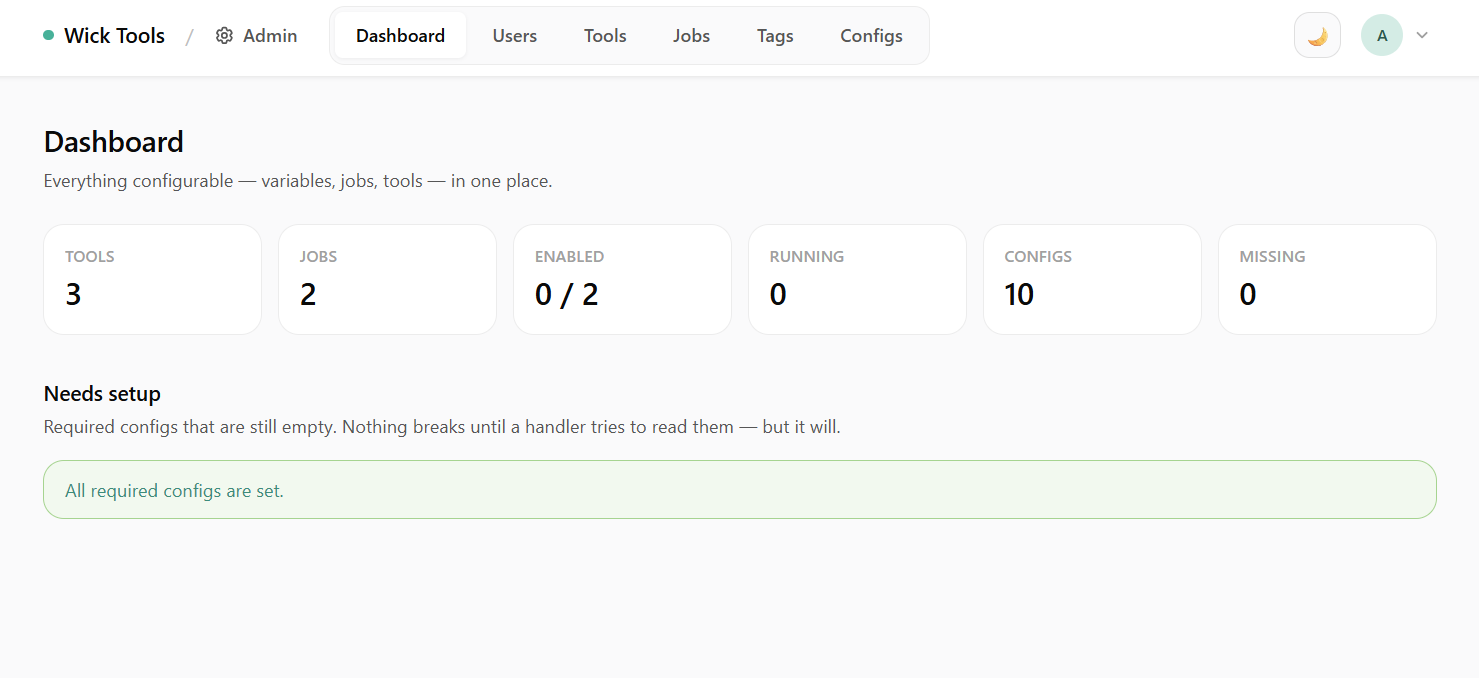 Dashboard — top-line stats split into Modules (execution health) and Access (auth surface). Clickable Connector / Access Token / Connected App cards jump to the matching admin page.
The dashboard groups stats into two clusters so module health and auth surface don't visually mix:
- Modules — Tools, Jobs, Enabled count, Running count, total Configs, Missing-required-configs count.
- Access — Connectors, Access Tokens, Connected Apps. Each card links to the page below.
Users
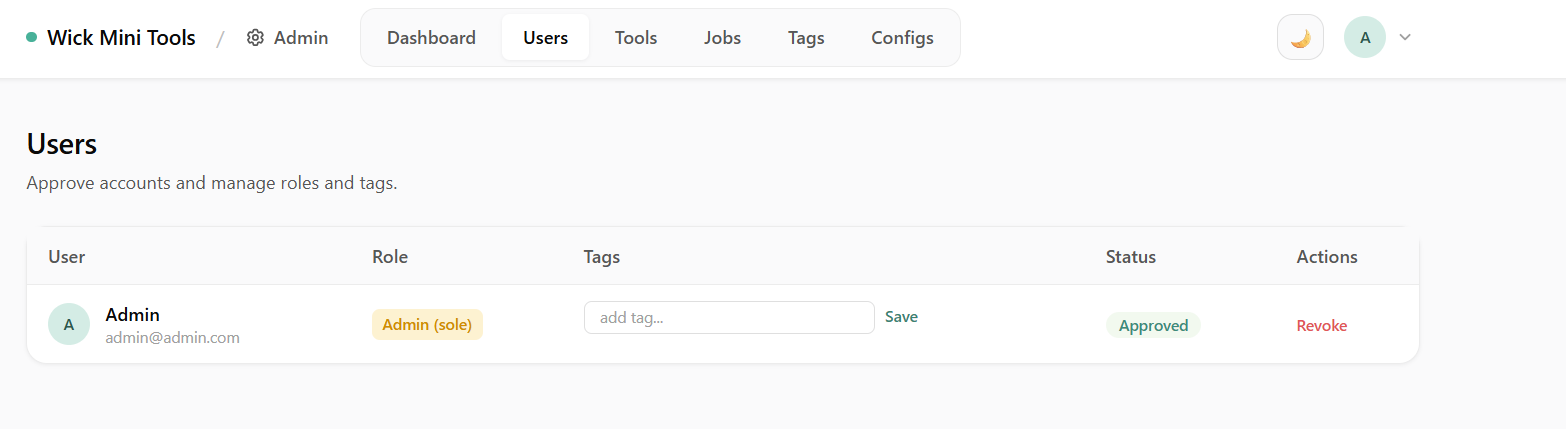 Users — approve accounts, assign roles (admin / user) and access tags. System tags are filtered out of the picker; role auto-syncs system tags on promote/demote.
Approve newly-registered users, demote/promote roles, and attach access tags. The tag picker hides System tags (code-managed, see Connector Runs Purge).
Mini Tools (Tools, Connectors, Jobs)
The Tools, Connectors, and Jobs admin pages are grouped under a Mini Tools dropdown in the admin navigation bar. A Mini Tools link is also available to all users in the Agents sidebar at the bottom, and opens the tools grid at /mini-tools.
Tools
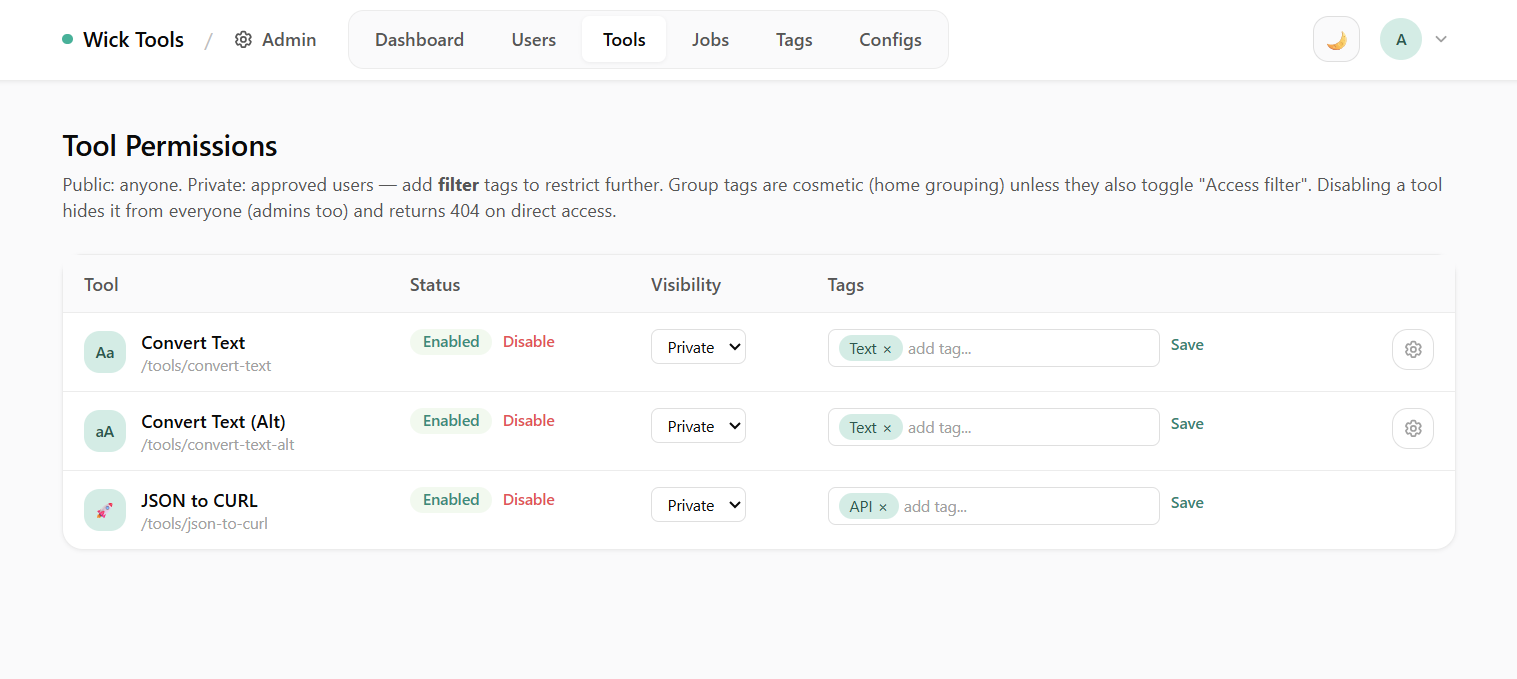 Tool Permissions — enable/disable tools, set per-tool visibility (public/private), assign tags.
Disabling a tool here is a kill-switch — the tool disappears from the home grid and Ctrl+K palette without a redeploy. Tag assignments here drive the home-grid grouping and (for filter tags) access control.
Jobs
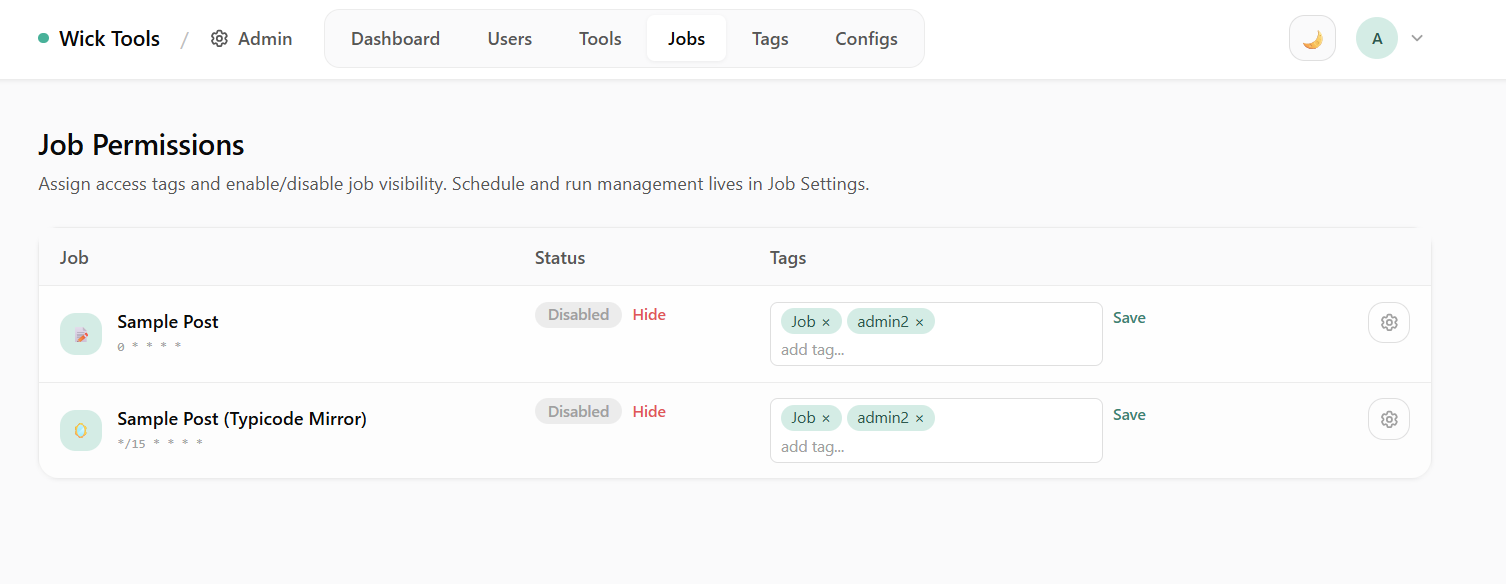 Job Permissions — enable/disable jobs, assign access tags. System-tagged jobs (e.g.
 connector-runs-purge) are locked: no Hide/Show button, no tag mutation, no schedule disable from this page.
For System-tagged jobs the action buttons are removed and the tag picker is read-only. Manage retention windows and cron schedules from /manager/jobs/{key} instead.
Connectors
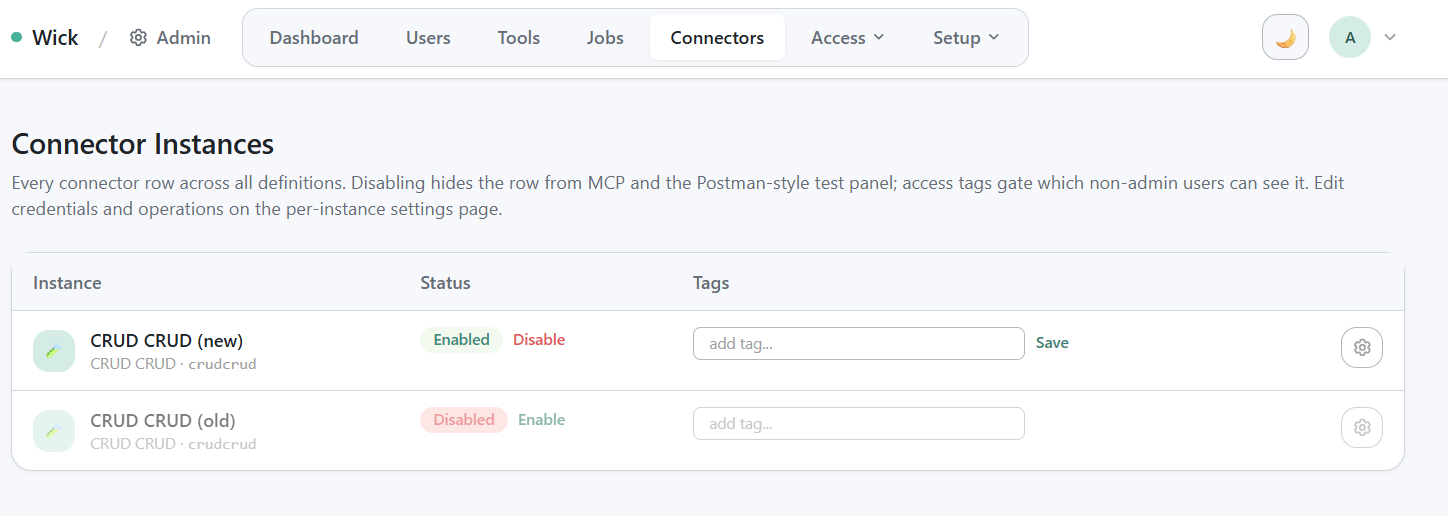
/admin/connectors cross-Key list — Disabled toggles, per-row tag picker, "Module not registered" badge for orphans.
/admin/connectors is the cross-Key list of every connector row across every user. Toggle Disabled to hide a row from MCP tools/list and from /manager/connectors. The tag picker reuses ToolTag with path /connectors/{id} — same mechanism as Tools.
A row whose Key no longer has a registered module is tolerated: the row stays, marked "Module not registered". wick_execute against such a row returns an error.
Operational guide: Connector Module.
Projects, Workflows, Skills & Data Tables (ownership)
/admin/projects, /admin/workflows, /admin/skills, and /admin/data-tables are cross-user lists of every project, workflow, skill, and data table, each with a tag picker — the admin surface for the ownership model that backs per-user isolation.
- Each of these resources gets an
owner:{resourceID}filter tag at creation time, and stampscreated_byas an audit trail. The owner (and any admin) sees it; everyone else is filtered out — sameIsFiltermechanism as the Tags section, just auto-created per resource instead of hand-assigned. - Share a resource by assigning a group tag to it here (and the same tag to the users/groups who should see it at
/admin/users). Transfer or open up by editing its tags. - Skills now live in their own DB table with
created_byset on upload;wick_skill_syncover MCP is admin-only. - Data Tables:
/data-tablesin the main UI now lists only tables the signed-in user owns or was granted — same rule as Workflows and Skills./admin/data-tablesgrants access to other users by tag, exactly like/admin/workflows. The agent's MCPdatatable_*ops are scoped the same way: an agent session can only read/write tables its owner (the human behind the session, not the shared internal agent principal) can reach, and a table an agent creates is owned by that user. Admins only see every table whenadmin_see_allis on.
This is the same tag-filter model used for connectors and tools — the owner: tags simply make every user-created resource private-by-default to its creator until explicitly shared.
Access Tokens
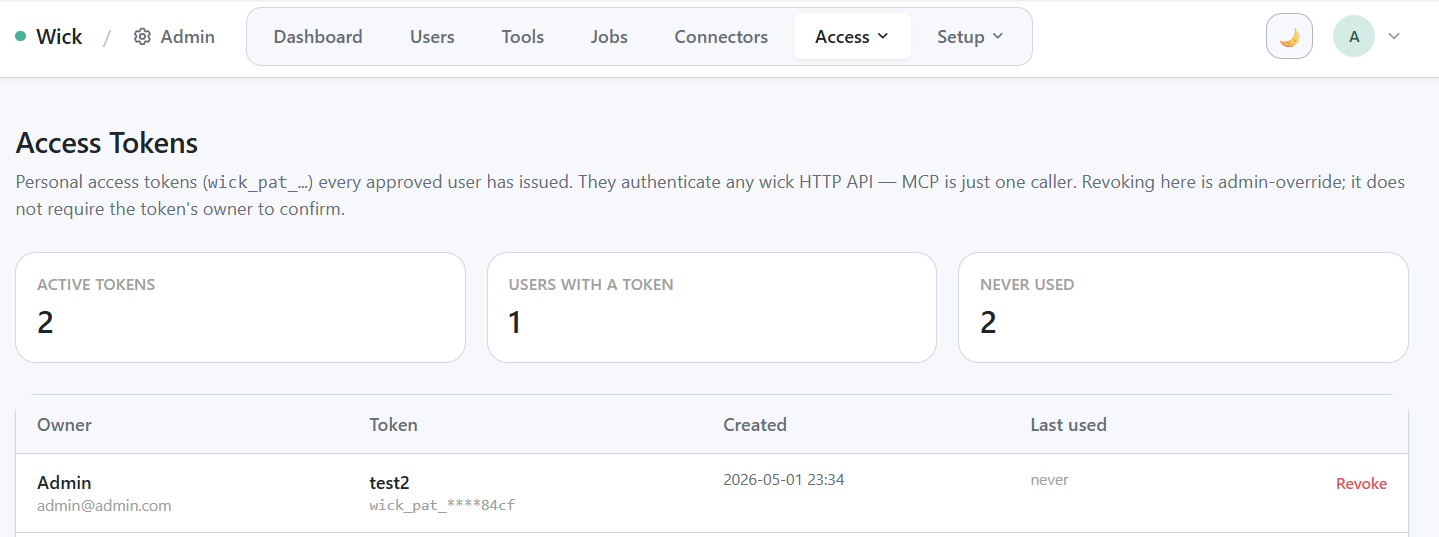
/admin/access-tokens cross-user view — stat card row + table.
Cross-user view of every active Personal Access Token. Admins can revoke any token without the owner's consent — useful when a token has been compromised or a user has left the team.
Operational guide: Access Tokens (PAT).
Connected Apps (OAuth)
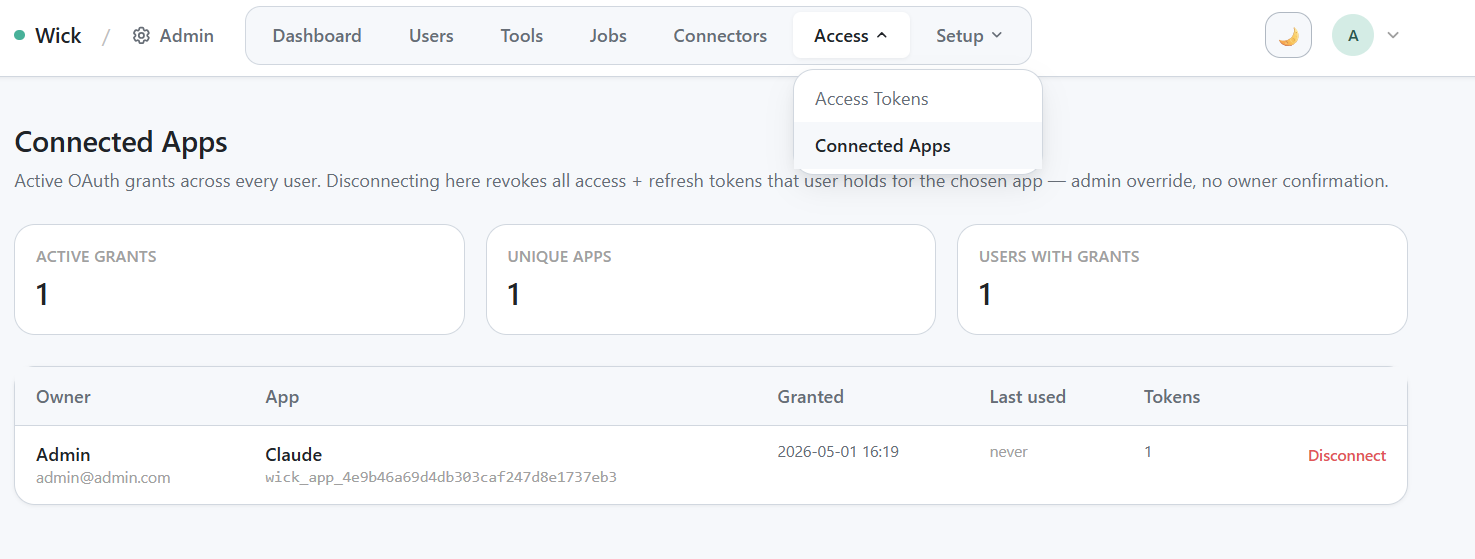
/admin/connections cross-user grant table — one row per (user × OAuth client) with admin Disconnect buttons.
Cross-user view of every active OAuth grant. Each row is one (user × client) pair with at least one valid access or refresh token. Disconnect revokes every token issued to that client for that user; the client must re-do the OAuth dance to regain access.
Operational guide: OAuth Connections.
Tags
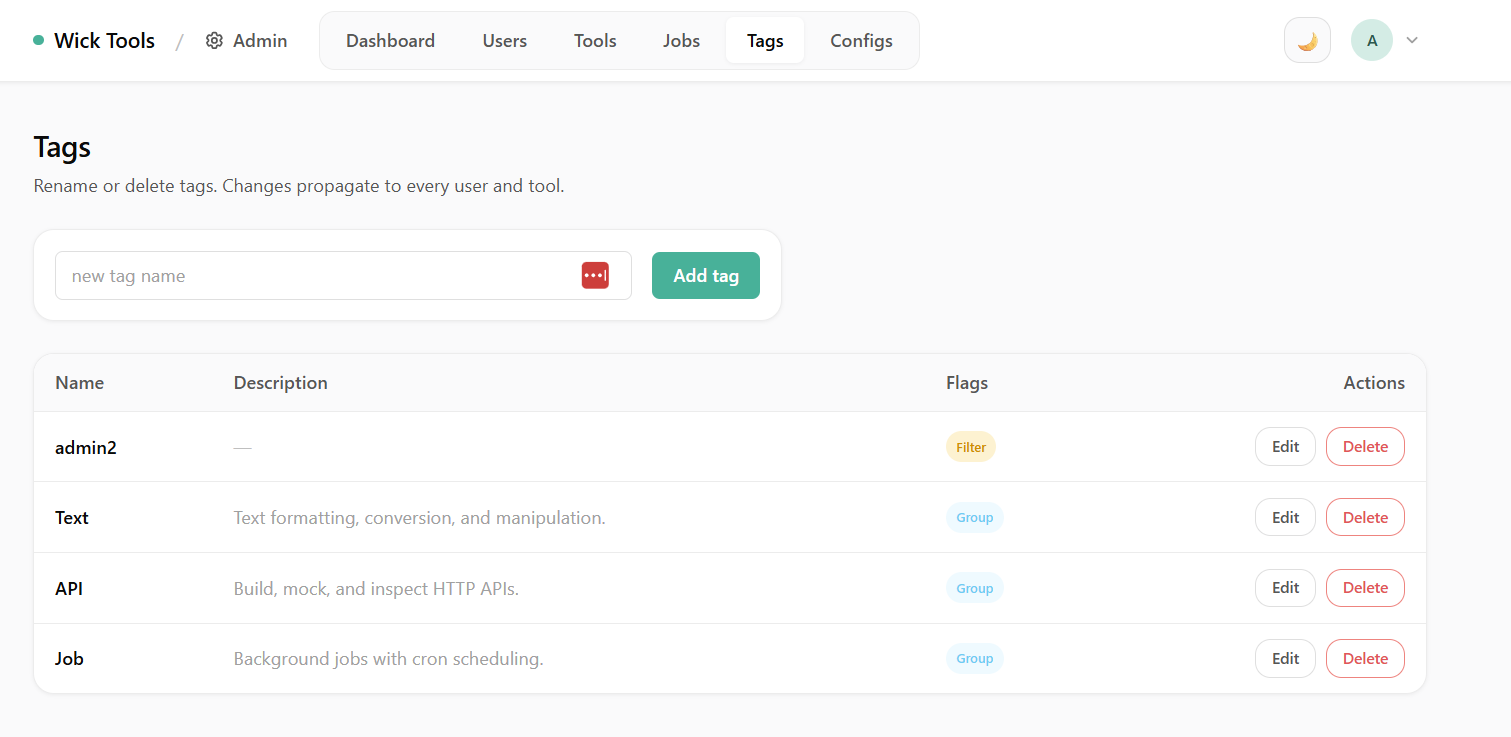 Tags — create group tags (home grouping) and filter tags (access control). System tags render as "Read-only · code-managed" with no Edit/Delete controls.
Three orthogonal flags per tag:
IsGroup— buckets modules visually on the home grid.IsFilter— gates access; rows with ≥1 filter tag are visible only to users carrying a matching tag.IsSystem— code-owned, immutable from the UI. Used by built-in jobs and connectors that ship with wick.
Advanced
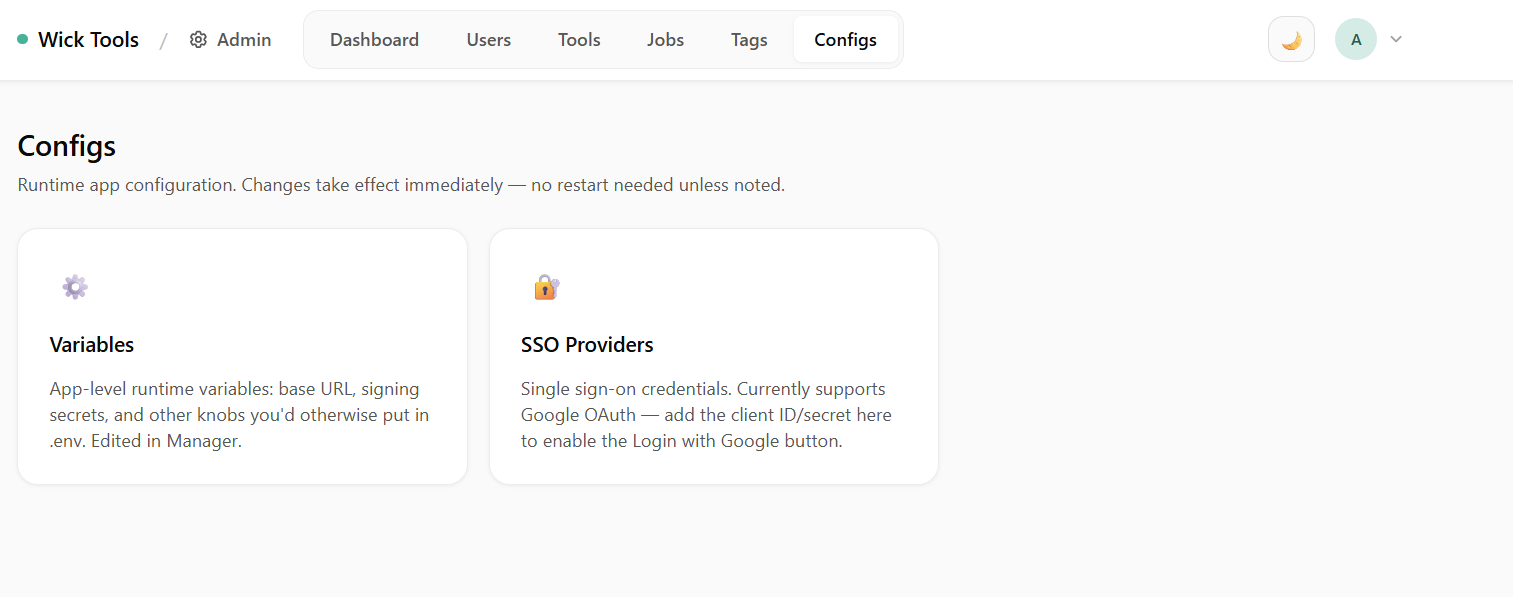 Advanced — runtime variables (app name, app URL, SSO providers, OAuth secrets) editable without redeploying. The DB value always wins over env-var seeds.
The Advanced section (previously "Configs") lives at /admin/advanced and groups the runtime configuration surfaces that don't fit in the main admin nav: Variables, SSO, and Software Update.
Env vars seed the row on first boot only; subsequent edits via this page are durable. SSO providers (Google, etc.) are configured here — no client_id/client_secret baked into the binary.
Operational guide: Environment Variables.
Software Update (/admin/advanced/software-update)
The Software Update page (previously called "System" at /admin/configs/system) has three panels:
Version — mirrors the fields wick_info exposes over MCP, grouped into three sections: Application (app name, app version, build time — the build time describes when the running application binary was compiled), Wick (the embedded wick framework version), and Runtime (access type and database status — type · connected / error). The App/Wick version fields carry a status badge — green Latest when already on the newest release, amber Update available → vX when a newer release exists. For non-official (downstream) builds, the Wick row also shows a "What's new" changelog block between the embedded version and the latest public wick release — rendered server-side from the background version cache, so no live request runs on page load.
Updates — available when the binary was built with a release source (--release-github-repo). Workflow:
- The page auto-checks for updates on load, populating the latest version, release date, and a rendered changelog of everything between the running version and the latest release.
- Click Check for updates to re-poll manually — the server checks GitHub releases and downloads the matching asset in the background. A live progress bar (SSE) fills as the download runs.
- When the download completes, Apply & restart appears. Click it — the service re-execs in place (Linux/macOS:
syscall.Execpreserves the PID; Windows MSI: a helper relaunches the process). The page polls/healthand reloads automatically once the new build answers.
When a newer release exists but ships no asset for the running OS/arch, the page shows the version and changelog with an informational notice ("No build for this platform — build from source or contact the maintainer") instead of a hard error.
When no release source is configured the Updates card is replaced by a "not configured" notice.
A View full changelog link is shown alongside the rendered release notes to open the complete changelog page.
Automatic updates — when enabled, the service checks for and downloads a new release on each boot, so the staged binary is ready for the next restart without a manual check. Applying it still requires a deliberate Apply & restart from this page. Default: off (opt-in).
Headless service mode
The Software Update page is the primary update surface for deployments running as a headless service (<app> all or <app> server). The desktop tray offers the same check/apply flow for GUI installs, with a matching opt-in auto-update toggle under Preferences.
Startup script
/admin/variables exposes a startup_script textarea and startup_script_enabled toggle. When enabled, wick runs the script in a fresh shell every time the server boots — sh on Linux/macOS, PowerShell on Windows. Output (stdout + stderr) lands in ~/.<appName>/logs/startup-script-YYYY-MM-DD.log.
The script + every process it spawns is bound to the server context via a process group (Unix setpgid + kill -pgid) / Job Object (Windows KILL_ON_JOB_CLOSE). Tray Stop, tray Quit, and wick server SIGINT all tear down the whole tree — backgrounded & daemons cannot survive as orphans. Restart the server to pick up edits; the running process is not HUP'd in-place.
Multi-line behaviour
The script runs sequentially in one shell process, exactly like a .sh / .ps1 file. A long-running foreground command blocks everything below it:
ngrok http 9425         # blocks here — line 2 never runs
echo "tunnel up"
For multiple daemons in parallel, background each one explicitly:
# Unix
ngrok http 9425 &
cloudflared tunnel run my-tunnel &# Windows
Start-Process ngrok -ArgumentList "http 9425"
Start-Process cloudflared -ArgumentList "tunnel run my-tunnel"All children — direct or backgrounded — die together when the server stops.
Use cases
Tunnel without exposing the LAN port. Pair
--localhost(orWICK_HOST=127.0.0.1) with a tunnel command:bashngrok http 9425 # or cloudflared tunnel run my-tunnelPort
:9425stays bound to loopback, the tunnel terminates TLS on a vendor domain, and the LAN never sees the server. Required pattern on Termux phones where Android has no host firewall.Pre-warm caches or kick off side processes that should always run alongside the server.
WARNING
Anything in this textarea runs as the wick user with full shell access. It's admin-gated like every other /admin/* page, but treat it the same as session_secret — anyone who can edit this row can execute arbitrary code on the host.
Reference
- Module operations: Tool Module, Background Job, Connector Module
- LLM auth: Access Tokens, OAuth Connections, MCP for LLMs
- Maintenance: Connector Runs Purge